Want to jump into a Minecraft world with your friends right now? This guide cuts straight to the chase for all things minecraft multiplayer, showing you the quickest and easiest ways to connect and play together on any device. Forget complicated setups; we’ll show you how to join public servers, play on a local network, and even create your own private world for free, so you can start your multiplayer adventure in minutes.
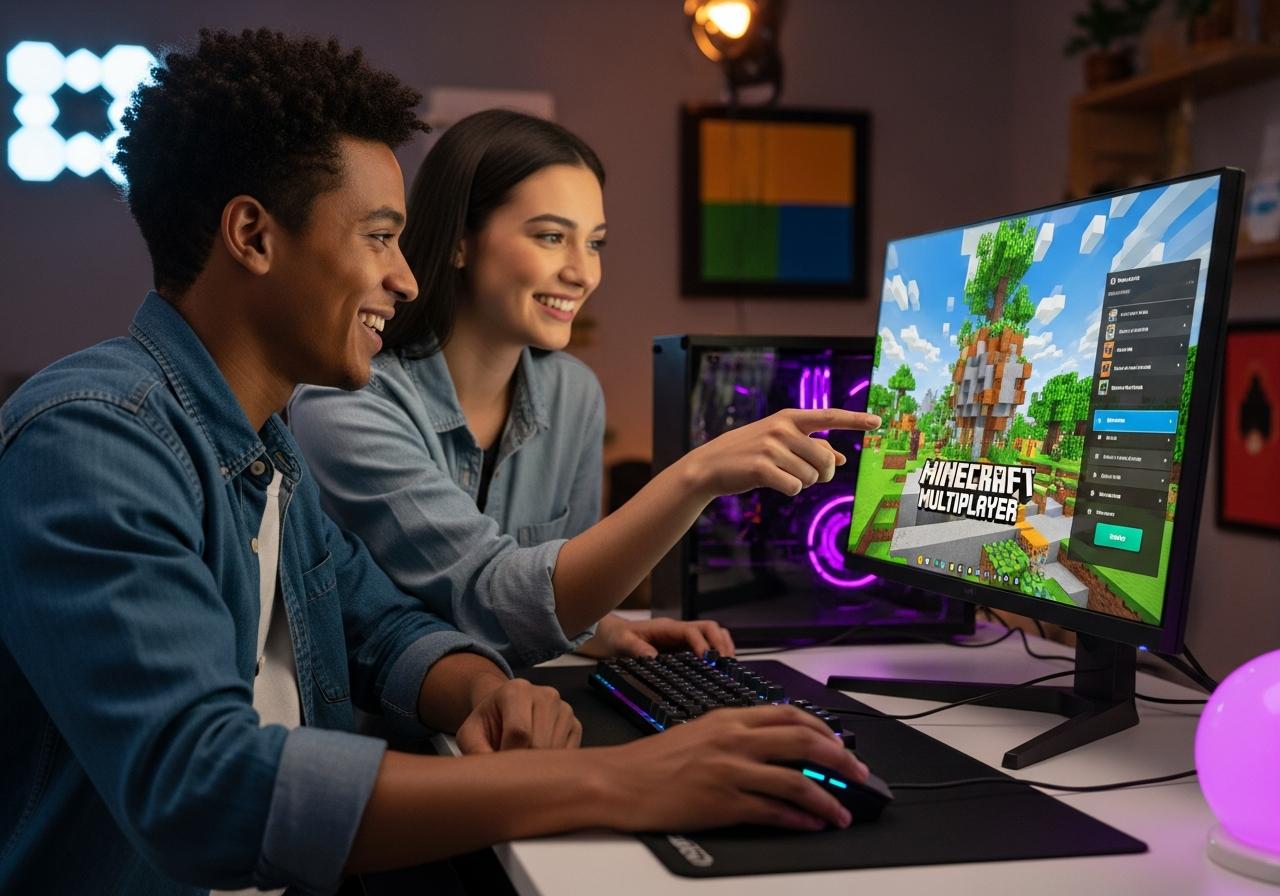
Instantly Join the Action: The Easiest Ways to Play Minecraft Multiplayer
Getting into a shared game with friends should be simple. Whether you’re on a phone, console, or PC, there are straightforward methods to start playing together almost instantly. These options require minimal technical know-how and are perfect for a quick and fun session.
Joining a Friend’s World on Mobile, Console, and PC (Bedrock Edition)
For players using the Bedrock Edition (available on mobile, consoles like Xbox, PlayStation, and Switch, and Windows 10/11), joining a friend is incredibly easy. Once you are friends through your Microsoft account, the host just needs to load their world and you can join directly from the “Friends” tab in the main menu.
This method supports cross-platform play, meaning a player on an Android phone can seamlessly join a friend playing on their Xbox. The host simply needs to have their world open and ensure their multiplayer settings allow friends to join.
Hopping into Public Servers for Minigames and Adventures
Public servers are massive online worlds filled with other players and a wide variety of gameplay modes, from competitive PvP and survival games to creative building plots and unique minigames. Both Java and Bedrock editions have a “Servers” tab in the multiplayer menu that lists several featured servers you can join with a single click.
To join other public servers, you’ll just need the server’s IP address, which you can find on websites that list Minecraft servers. Simply click “Add Server,” enter the address, and you’re ready to explore vast communities and endless adventures.
Playing Side-by-Side with Split-Screen on Consoles
If your friends are in the same room, you can play together on a single console using split-screen. This classic couch co-op experience is available on Xbox, PlayStation, and Nintendo Switch. All you need is a TV that supports 720p resolution or higher and a spare controller for each additional player.
To start, the first player loads into a world. Then, the second player turns on their controller and presses the designated button to join the game, instantly splitting the screen. This is a fantastic way to share the fun without needing a second console or an internet connection.
Your Own Private World: Connecting with Friends for Free
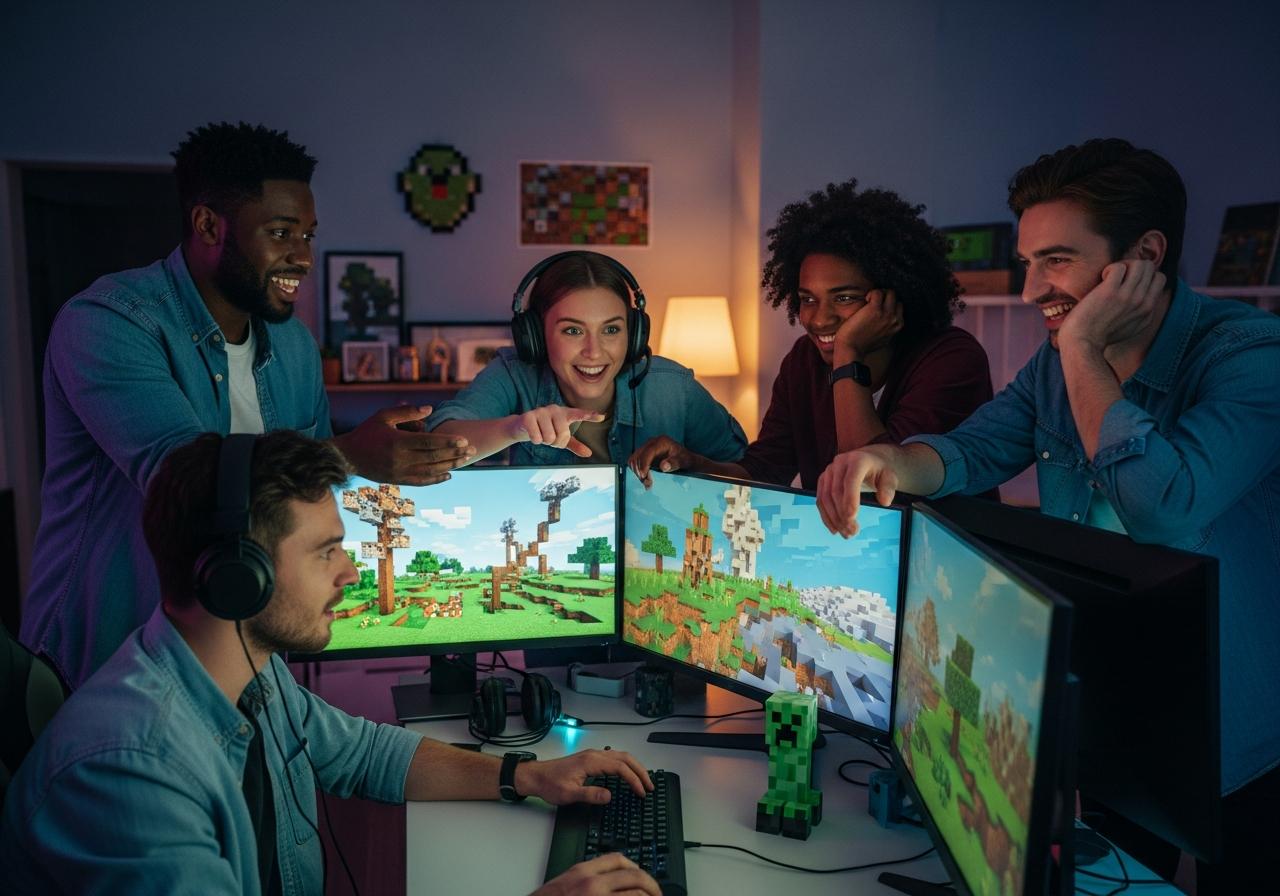
If you want a more private experience without the distraction of public servers, there are several free ways to create your own world. These methods give you more control over your gameplay and are perfect for a close-knit group of friends.
Setting Up a LAN Party: Play Together on the Same Wi-Fi
A Local Area Network (LAN) game lets you play with others connected to the same Wi-Fi network. This is one of the simplest free Minecraft multiplayer options for both Java and Bedrock editions. The host player simply opens their single-player world and, from the pause menu, selects “Open to LAN”.
Other players on the same network will then see the world appear automatically in their multiplayer server list and can join instantly. This is perfect for family members at home or friends gathered for a gaming session.
Using the “Essential Mod” for a Simple Java Edition Multiplayer Experience
For Minecraft Java Edition multiplayer, the “Essential Mod” is a game-changer. This free, quality-of-life mod adds a social menu that allows you to invite friends directly into your single-player world without any server setup or port forwarding.
Once you and your friends have the mod installed, you can add each other to a friends list. From there, the host just needs to load their world, open the pause menu, and click “Invite.” It’s a hassle-free way to enjoy a modded or vanilla experience together.
Free Server Hosting Options like Aternos for a Persistent World
If you want a world that stays online even when the host is offline, free server hosting services like Aternos are an excellent choice. These platforms allow you to create and configure your own private server for both Java and Bedrock editions at no cost.
After signing up on the Aternos website, you can create a server, choose your game version, and even install plugins and mods. You then share the server IP address with your friends, allowing them to connect whenever they want. It’s a powerful and cost-effective way to maintain a persistent online world.
Ultimate Control: Customizing Your Multiplayer Experience
For players who want to take their Minecraft multiplayer game to the next level, several options offer deep customization, from installing game-changing mods to bridging the gap between different Minecraft versions.
Minecraft Realms vs. Private Server Hosting: What’s the Difference?
When deciding how to host a persistent world, the main choices are Minecraft Realms and third-party private server hosting.
- Minecraft Realms: This is Mojang’s official, subscription-based server solution. It’s incredibly easy to set up directly from the game menu and is a safe, reliable option, especially for console and mobile players. However, Realms offer limited customization, with no support for mods and a cap of 10 players.
- Private Server Hosting: Third-party hosts provide far more control and flexibility. With a private server, you can install any mods or plugins you want, support a much larger number of players, and have full access to the server files for deep customization. While it can be slightly more technical, many hosting providers offer user-friendly control panels that simplify management.
At GameApp4U, we find that Realms are perfect for beginners and small groups wanting a simple vanilla experience, while private hosting is the go-to for anyone looking to build a unique, modded community.
Unleash Creativity with Multiplayer Mods
Mods can completely transform the Minecraft multiplayer experience, adding everything from new creatures and dimensions to complex machinery and magic systems. Popular multiplayer mods to play with friends include ‘JourneyMap’ for shared cartography, ‘Waystones’ for easy teleportation between bases, and entire modpacks like ‘Better MC’ that overhaul the entire game with new content to explore together. Installing mods on a server allows everyone connected to enjoy the same customized adventure.
Java vs. Bedrock: Understanding Cross-Platform Play with GeyserMC
Historically, Minecraft Java vs Bedrock multiplayer have been separate ecosystems. However, a plugin called GeyserMC acts as a bridge, allowing Bedrock Edition players (on mobile, console, Windows) to join Java Edition servers. This is a powerful tool for server owners who want to unite their community across different devices. Geyser translates the data between the two editions, enabling true Minecraft cross-play on a private server.
Quick Troubleshooting for Common Connection Issues
Running into connection problems can be frustrating, but most issues are fixable. Here are some quick tips for common problems.
“Why Can’t I Join My Friend’s World?”: Checking Game Versions and Permissions
One of the most common reasons for the “Unable to connect to world” error is a version mismatch. All players must be running the exact same version of Minecraft to play together. Additionally, check your multiplayer permissions in your Microsoft account settings to ensure “Join multiplayer games” is set to “Allow.” For console players, an active subscription like PlayStation Plus or Xbox Game Pass Core is typically required for online play.
Navigating Firewall and Router Settings for a Smooth Connection
If you’re hosting a server on your own PC, your firewall or router might be blocking incoming connections. You may need to create an exception in your firewall settings for Minecraft’s executable file (“javaw.exe”). For more advanced server hosting, you might need to configure port forwarding on your router, typically for port 25565 on Java Edition, to allow external traffic to reach your server.
With so many ways to connect, playing Minecraft multiplayer with friends has never been easier. Whether you’re joining a massive public server for some minigame fun, setting up a quick LAN game at home, or building a persistent world on a private server, a shared adventure is just a few clicks away. Choose the option that best fits your needs and start creating memories with your friends today.
Ready to start your multiplayer adventure? Download Minecraft for your mobile device now and instantly connect with your friends

![15 Temu Discount Codes & Special Offers 2025 – Save Up To 80% In The UK! [Verified]](https://gameapp4u.mobi/wp-content/uploads/2025/12/temu-discount-codes-special-offers-2025-save-up-to-80-in-the-uk-350x180.jpeg)